
Quickstart
This page gets you from install to a useful first Atomic session. Atomic is the loop engine for all engineering work: it runs reliable coding-agent loops with stages, tools, artifacts, verification, subagents, review gates, checkpoints, and human approvals.Prerequisites
- Release archive install: macOS and Linux need
tarand eithercurlorwget; Windows uses built-in PowerShell commands. Node.js and a package manager are not required. - Package install: Node.js 24 LTS or newer plus npm, pnpm, Yarn, or Bun. Use Bun 1.3.14+ for Bun installs or workflow-authoring examples.
- Model-provider access — Use
/loginafter startup. Supports provider subscriptions and APIs.
Install
Release archive
On macOS or Linux:~/.local/share/atomic for versioned payloads and ~/.local/bin/atomic for the launcher. The Windows defaults are %LOCALAPPDATA%\atomic and %LOCALAPPDATA%\atomic\bin\atomic.cmd. The Unix installer prints a paste-safe export PATH=... command if needed. A custom Unix ATOMIC_BIN_DIR containing : cannot be one PATH entry, so the installer prints direct-run guidance instead. The Windows installer updates the User PATH and current process, then asks you to restart the terminal.
Use ATOMIC_INSTALL_DIR and ATOMIC_BIN_DIR to change those paths. Set ATOMIC_VERSION to an exact release tag, or pass a flag that overrides it:
Relative ATOMIC_INSTALL_DIR and ATOMIC_BIN_DIR values on macOS/Linux resolve against the physical directory where the installer starts, and both are used exactly as given, including any trailing whitespace or newline. The install root cannot equal or sit inside the launcher path (ATOMIC_BIN_DIR/atomic), and ATOMIC_BIN_DIR cannot sit inside the install root’s current or versions directories, which the installer replaces on every install; impossible layouts fail before any download or filesystem change. Exact pins use Atomic’s MAJOR.MINOR.PATCH or MAJOR.MINOR.PATCH-alpha.REVISION release tag form, and a pin is honored literally: if GitHub answers with a different release tag, the installer stops before downloading anything rather than installing a version you did not ask for.
GITHUB_TOKEN or GH_TOKEN is optional and raises GitHub API limits on shared networks. Curl and GNU Wget keep the token in a protected temporary file instead of process arguments. BusyBox Wget remains supported without a token, and with a token when the latest-release redirect avoids the API; if an authenticated API fallback is needed, install curl or GNU Wget rather than exposing the token. The installer downloads only the matching GitHub Release archive and SHA256SUMS, verifies the checksum, and keeps the complete payload in a versioned directory.
Package managers
Package installs still require Node.js. Install the published package globally with npm, pnpm, or Bun:--ignore-scripts if you want to disable dependency lifecycle scripts during a package install.
Alpine and musl Linux archives
The shell installer detects Alpine and selectsatomic-linux-x64-musl.tar.gz or atomic-linux-arm64-musl.tar.gz. These archives bundle payload-local libgcc and libstdc++, so stock Alpine needs no runtime package install. See the Alpine and musl Linux archive notes for the clipboard fallback and external Postgres or Docker requirement for durable workflows.
Then start Atomic in the project directory you want it to work on:
Uninstall
For a default archive install on macOS or Linux, remove~/.local/share/atomic and the ~/.local/bin/atomic link. On Windows, remove %LOCALAPPDATA%\atomic; if you set ATOMIC_BIN_DIR, also remove atomic.cmd and the atomic-current junction from that directory, then remove the directory from your User PATH.
For a package install, remove the global package with the same package manager:
~/.atomic/agent/ unless you delete that directory yourself.
Authenticate
Atomic can use subscription providers through/login, or API-key providers through environment variables or the auth file.
Option 1: subscription login
Start Atomic and run:Option 2: API key
Set an API key before launching Atomic:/login and select an API-key provider to store the key in ~/.atomic/agent/auth.json.
See Providers for all supported providers, environment variables, and cloud-provider setup.
First session
On a fresh install with no prior Atomic startup state, Atomic shows a one-time first-run explanation after any What’s New notes and directly above the input box describing Atomic as a verifiable coding agent runtime for building and running agent workflows you can feel confident in. Returning users with prior startup state are marked onboarded automatically and continue directly into the normal chat UI; stored credentials by themselves do not skip the first-run explanation. The composer is the normal Atomic input from the start: type a message, run/login first if no provider is connected, open /atomic, or launch a workflow command without a special onboarding transition.
Once Atomic starts, default to a workflow for non-trivial work and for requests with inherent structure plus a verifiable objective. Implementation, build, debugging, bug fixes, migrations, features, scoped multi-file edits, validation/review work, and loop-shaped requests are workflow candidates; reserve direct chat for tiny deterministic low-risk answers or edits where tracking clearly adds more overhead than value.
Workflow-first is not builtin-only or monolithic. Atomic can discover and run named builtin, project, user, and package workflows; author a rich custom TypeScript workflow({...}) inline; and compositionally import reusable workflow definitions—including builtins from @bastani/workflows/builtin—into parent workflows with ctx.workflow(...). Nested children can nest again within maxDepth, so custom graphs can combine proven research, implementation, design, verification, and approval workflows instead of copying them. They can also classify and branch, dynamically fan out and synthesize artifacts, run adversarial repair cycles, tournament-rank candidates, and loop until checks pass with explicit bounds.
Atomic turns repeatable engineering loops into executable stages with inspectable evidence instead of relying on a markdown checklist the model may or may not follow.
For an interactive tour any time, run /atomic inside the TUI; /atomic overview, /atomic workflows, and /atomic example walk through the same flow in more depth.
Try the built-in workflows
Atomic ships with nine workflows you can run immediately. Use/workflow list to see them and /workflow inputs <name> to inspect their inputs in your environment.
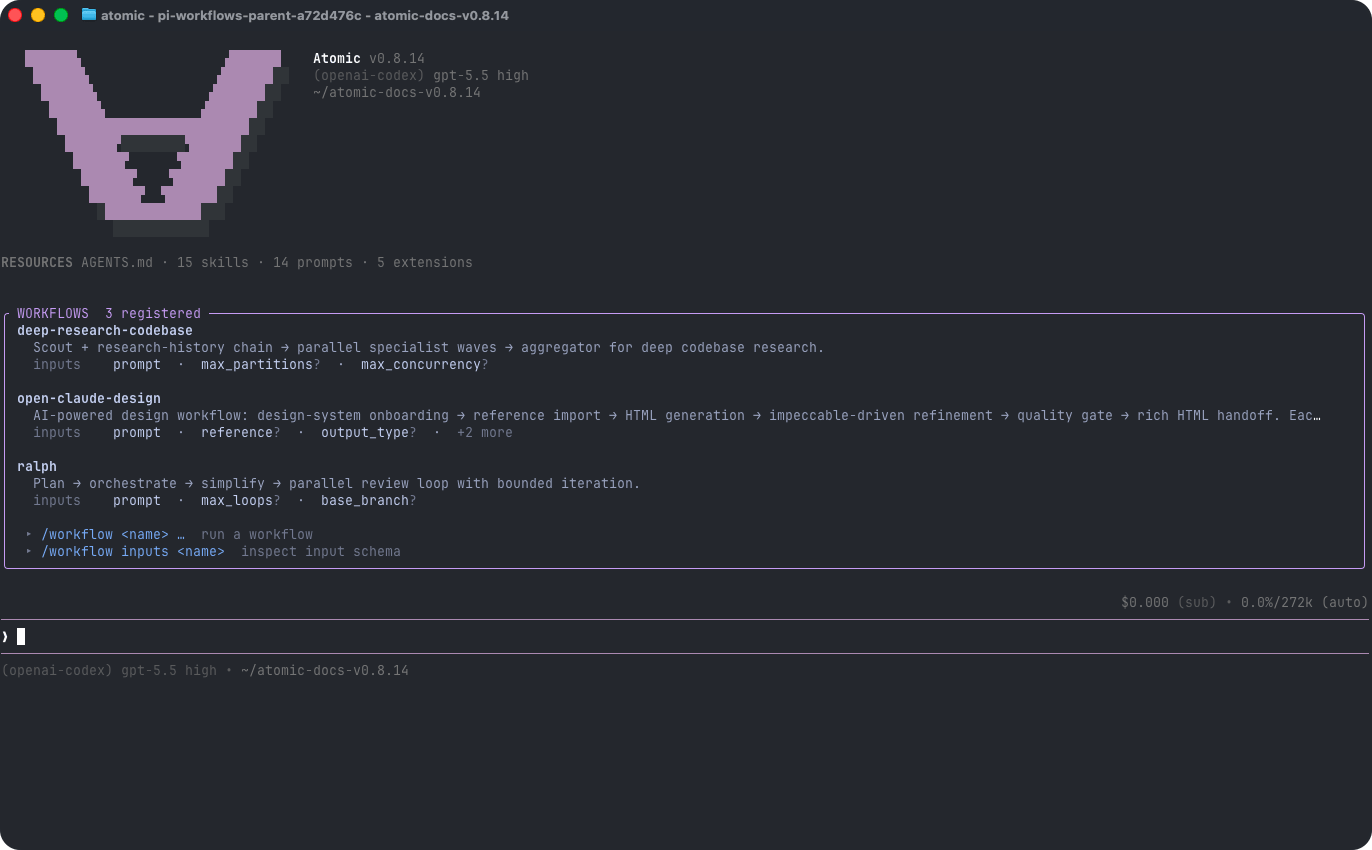
key=value tokens. Values are JSON-parsed when possible, so count=5, flag=true, and prompt="multi word value" preserve useful types. If you call /workflow <name> without required inputs, the TUI opens an inline picker; pass --no-picker to skip it. Goal and Ralph support git_worktree_dir only when you explicitly want a reusable worktree, and skip PR creation unless you set create_pr=true for the post-approval final stage.
You can also launch workflows with natural language — describe the task in chat and ask Atomic to run a matching installed workflow or author a task-specific one:
Monitor and steer a run
Named workflow runs execute in the background. After launch you get the full run id; user-facing workflow surfaces show that complete UUID. You can still type the full id or a unique short prefix to inspect, connect, pause, quit, or resume a run. Ambiguous prefixes are reported rather than selecting a run arbitrarily.BACKGROUND panel uses two lines per card at 80 columns and wider: the status glyph and full id are on the first line, and the workflow name plus mode/progress/elapsed metadata are on the second. Below 80 columns it collapses to a count-only line. In chat surfaces, a full id wraps onto continuation lines at narrow widths instead of being cut, and the surrounding border remains intact.
Human-in-the-loop prompts (ctx.ui.input, confirm, select, editor) surface in the graph viewer, not as chat modals — connect to the run to answer them.
Atomic also posts main-chat lifecycle notices when a run completes, fails, or awaits input. If you answer a workflow prompt in the graph or attached stage chat, the main chat receives a display-only answer summary for audit; it does not wake the model, enter LLM context, or answer later prompts. See Workflows for the full reference and authoring guide.
Top skills to invoke directly
Skills are reusable expert instructions. Trigger one with/skill:<name> followed by a request:
Use
/skill:research-codebase for a focused subsystem or question. For repository-wide research, use fan-out-and-synthesize with distinct repository partitions and an artifact synthesis barrier. Use Goal for ledger-backed bounded orchestration and Ralph for research-first delegated implementation with iterative review; task size alone does not select either workflow.
Create your own workflow in natural language
Named workflows may be builtin, project, user, or package supplied. You do not have to hand-write TypeScript to add a new workflow. Describe what you want in plain chat and Atomic will design and write it for you using the Workflows reference as the source of truth:- ask clarifying questions if stage purpose, inputs, models, or handoffs are ambiguous,
- write a
.atomic/workflows/<name>.tsdefinition that usesworkflow({ ... })and importsTypefromtypebox, - run
/workflow reloadso the generated workflow is rediscovered and can be launched with/workflow <name>, - then report the generated workflow folder so you can inspect the code it wrote, using
Custom workflow created. You can inspect its code at: <workflow-folder-path>(for example,.atomic/workflows/); Atomic does this only for newly created custom workflows, never builtin or pre-existing workflows.
@bastani/workflows/builtin.
Default tools and prompts
If you’d rather start with a plain prompt, just type a request and press Enter:read- read filesbash- run shell commandsedit- patch fileswrite- create or overwrite filesfind- discover files by glob patternsearch- search file contentsask_user_question- ask structured questions in the TUItodo- manage file-based todos
find and search in addition to read, bash, edit, and write. Atomic runs in your current working directory and can modify files there. Use git or another checkpointing workflow if you want easy rollback.
Give Atomic project instructions
Atomic loads context files at startup. Add anAGENTS.md file to tell it how to work in a project:
~/.atomic/agent/AGENTS.mdfor global instructionsAGENTS.mdorCLAUDE.mdfrom parent directories and the current directory
/reload, after changing context files.
Common things to try
Reference files
Type@ in any interactive editor to fuzzy-search files; or pass files on the command line:
Run shell commands
In interactive mode:!!command to run a command without adding its output to the model context.
Switch models
Use/model or CTRL+L to choose a model. Use SHIFT+Tab to cycle thinking level. Use CTRL+P / SHIFT+CTRL+P to cycle through scoped models.
Continue later
Sessions are saved automatically:/resume, /new, /tree, /fork, and /clone to manage sessions.
Non-interactive mode
For one-shot prompts:--mode json for JSON event output or --mode rpc for process integration.
Next steps
- Using Atomic - interactive mode, slash commands, sessions, context files, and CLI reference.
- Workflows - run, inspect, and author multi-stage automation (including the built-in workflows).
- Skills - reusable expert instructions invoked with
/skill:<name>. - Providers - authentication and model setup.
- Settings - global and project configuration.
- Keybindings - shortcuts and customization.
- Atomic Packages - install shared extensions, skills, prompts, and themes.