
Using Atomic
This page collects day-to-day usage details that do not fit on the quickstart page.Interactive Mode
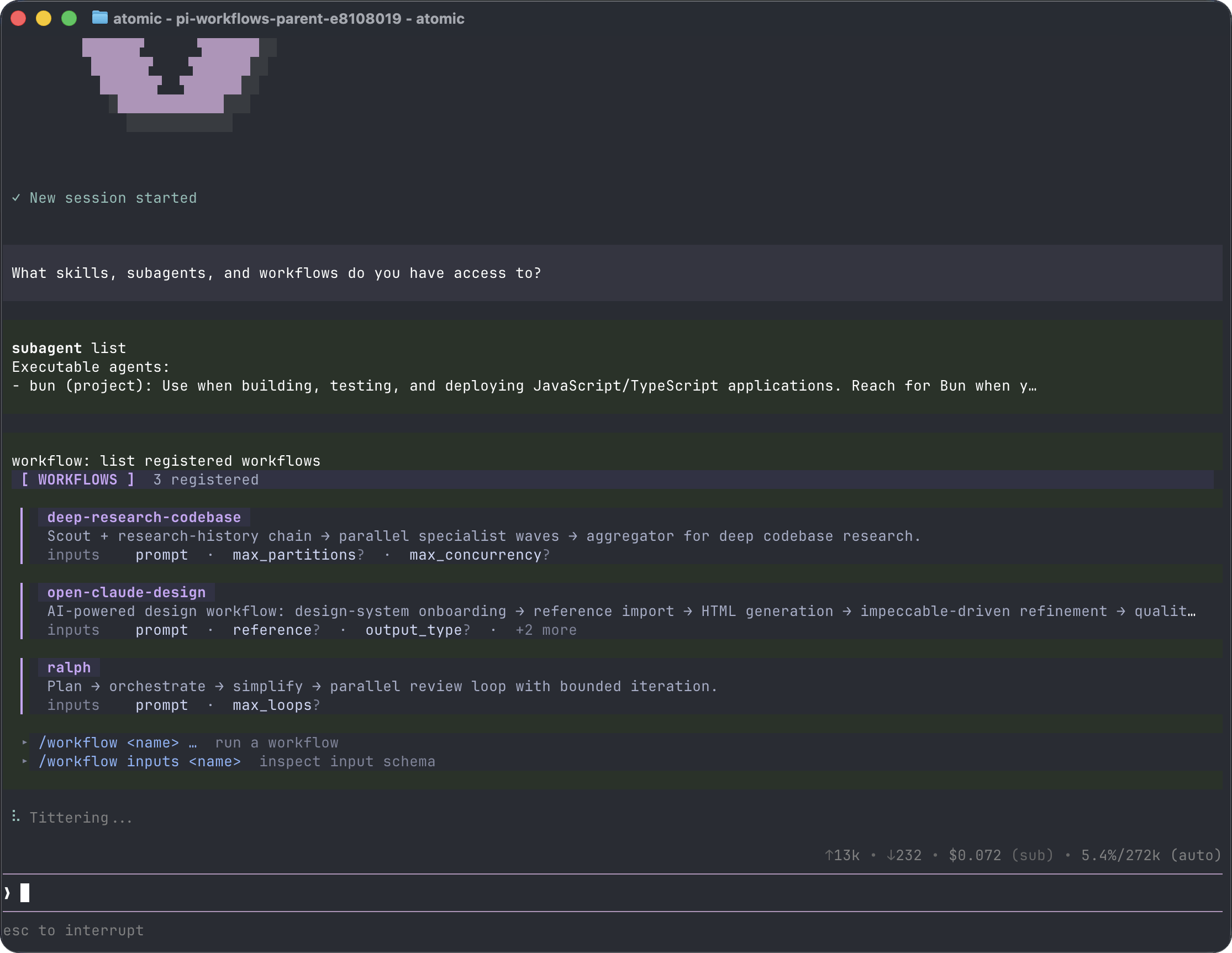
- Startup header - shortcuts, loaded context files, prompt templates, skills, and extensions
- Messages - user messages, assistant responses, tool calls, tool results, notifications, errors, and extension UI
- Editor - where you type; border color indicates the current thinking level
- Footer - working directory, session name, token/cache usage, cost, context usage, and current model
/settings or by custom extension UI.
Startup and Working Identity
On an interactive TTY, the startup ∀ assembles from two separated halves in whole-column steps, lands its shadow and session identity, then reveals the one-time manifesto beat. Any key—including Ctrl+C—completes the sequence immediately before normal input routing continues. Terminals narrower than the mark show compact textual identity throughout assembly instead of a blank startup area. Quiet startup suppresses the sequence; a mounted interactive UI without a TTY, or withATOMIC_REDUCED_MOTION=1, starts in the complete settled state. NO_COLOR suppresses foreground color across the mark, metadata, and manifesto while retaining weight emphasis.
While ordinary agent work is active, the exact one-cell ∀ remains visible and follows a pronounced ten-frame dark → accent → bright/bold → accent → dark luminance ramp at an 88ms cadence. Optional theme tone overrides control any terminal-supported foreground phase exactly, including palette indices 0–255; Atomic derives omitted tones from selected-surface, accent, and text roles. Dark, light, custom, and dynamically reloaded themes therefore remain correct without changing glyph shape or geometry. It occupies the same inline, one-row footprint as the standard spinner: one glyph immediately before the existing text. Main and workflow-stage chat preserve all 453 of Atomic’s original randomized whimsical working verbs, selecting one message per turn; even the longest fits the tested 64-column surface. Every agent and SDK turn resets to the dark regular phase with a fresh lifecycle-relative cadence, while turn, terminal, error, replacement, and disposal paths stop the active timer cleanly. Restoring the ordinary indicator after an extension override also resets its phase and cadence; extension-provided frames and intervals remain unchanged and render verbatim. Under NO_COLOR, regular/bold weight preserves visible activity without foreground-color escapes. With ATOMIC_REDUCED_MOTION=1, ∀ remains static, regular, and accent-colored without an animation timer. Factual retry, fallback, error, cancellation, and compaction status suppresses the thematic indicator, while blocker and human-approval/prompt surfaces hide ordinary work chrome and factual receipts remain verbatim.
Editor Features
See Keybindings for all shortcuts and customization.
Slash Commands
Type/ in the editor to open command completion. Extensions can register custom commands, skills are available as /skill:name, and prompt templates expand via /templatename.
Message Queue
You can submit messages while the agent is still working:- Enter queues a steering message, delivered after the current assistant turn finishes executing its tool calls.
- ALT+Enter queues a follow-up message, delivered after the agent finishes all work.
- Escape aborts active/queued work and restores queued steering/follow-up messages to the editor. The session remains paused until you submit the next ordinary chat message; that submission releases any held queue before starting the new turn. A later Escape while the queue is paused restores any newly queued steering/follow-up text without releasing the pause.
- Ctrl+C aborts active/queued work and pauses queued messages in place. They remain queued, in their original per-queue order, until you submit the next ordinary chat message; that submission resumes the chat and makes each queued item eligible once. After the abort settles, a later idle Ctrl+C clears the editor without releasing the hold, and a second quick idle press exits.
- ALT+Up explicitly retrieves queued messages back to the editor without aborting active work or resuming a paused session. Even when retrieval empties the queue, the pause remains active until the next ordinary submission.
steeringMode and followUpMode.
Sessions
Sessions are saved automatically to~/.atomic/agent/sessions/, organized by working directory.
--session-id does not match an exact session in the current project, Atomic warns that no session was found and then creates the requested new session. Reusing an existing exact ID opens it without that warning.
Useful session commands:
/sessionshows the current session file and ID./treenavigates the in-file session tree and can summarize abandoned branches./forkcreates a new session from an earlier user message./cloneduplicates the current active branch into a new session file./compactuses verbatim line compaction: the model selects one-based numbered ranges to delete, Atomic validates them, and retained text is reconstructed mechanically with(filtered N lines)markers. Exactly the configured number of newest context-visible messages remains ordinary; the default is two and zero preserves none.
Context Files
Atomic loadsAGENTS.md or CLAUDE.md at startup from:
~/.atomic/agent/AGENTS.mdfor global instructions- parent directories, walking up from the current working directory
- the current directory
--no-context-files or -nc.
System Prompt Files
Atomic’s defaultGuidelines section applies Orwell’s six writing rules to every standard session:
- Never use a familiar printed metaphor, simile, or figure of speech.
- Never use a long word where a short one will do.
- Cut every word that can be cut.
- Use active rather than passive voice where possible.
- Prefer everyday English to foreign phrases, scientific terms, and jargon.
- Break any rule rather than say anything outright barbarous.
.atomic/SYSTEM.mdfor a project~/.atomic/agent/SYSTEM.mdglobally
APPEND_SYSTEM.md in either location.
Exporting and Sharing Sessions
Use/export [file] to write a session to HTML.
Use /share to upload a private GitHub gist with a shareable HTML link.
Treat exported and shared sessions as sensitive: transcripts can contain source code, file paths, credentials, and other private data from your session. Review a session before sharing it, and only upload transcripts you are comfortable making accessible to anyone with the link.
CLI Reference
-- to end option parsing when positional prompt text begins with -, --, or @. Every argument after the terminator is treated as literal message text rather than an option or file argument:
Package Commands
atomic update can update the Atomic CLI installation. To uninstall Atomic itself, see Quickstart. atomic config and project package commands accept --approve/--no-approve to trust or ignore project-local settings for one command. atomic update never prompts for project trust.
See Atomic Packages for package sources and security notes.
Credential Commands
KEY=$(atomic auth print-api-key --model gpt-5.5) can never capture a diagnostic.
--model is required. There is no ambient “current model”, so the command cannot emit a credential you did not name. When several configured providers offer the model, pass --provider to choose one. --provider and --model are the only options either subcommand accepts: any other flag — including --export, --session-dir, --print, and --help — is a usage error rather than a flag this path happens to ignore.
atomic auth on its own — and atomic auth help, --help, or -h — prints this usage on stderr and exits 0. Any other subcommand exits 1 and names the two valid ones. Help never uses stdout, so stdout from this command family is a credential or empty.
print-bearer-token works only on OAuth providers and print-api-key only on API-key providers; asking for the wrong kind is an error rather than a silent fallback. A bearer token with less than --min-expiry remaining (default 30m, accepting ms, s, m, or h) is refreshed first. Both --min-expiry 30m and --min-expiry=30m are accepted. --min-expiry with print-api-key is a usage error — an API key has no expiry. A failed refresh leaves your stored credential untouched.
Exit
5 is reported only for a refresh that itself failed, which happens before anything is persisted; that is the only exit that promises your stored credential is untouched. Any other OAuth failure exits 7 and makes no such promise.
Stdout is empty on every non-zero exit but one. Once the credential reaches stdout the command has succeeded: if the stream then fails to drain — a reader that closed the pipe, for example — that is reported on stderr and the exit code stays 0, because a non-zero exit here would contradict the bytes the caller already holds. The exception is exit 9, which reports that only part of the credential was written before the stream failed; those bytes cannot be recalled, so stdout is not empty, and the output is a fragment to discard rather than a credential to use. See Security before wiring this into a script.
Modes
In print mode, Atomic also reads piped stdin and merges it into the initial prompt:
createStructuredOutputTool (for example from an extension, SDK caller, or workflow item with a schema), Atomic ends after that tool result without an extra follow-up assistant turn. Print-mode stdout contains the terminating structured JSON payload, so atomic -p remains script-friendly while the same value is also available through the SDK capture sink, tool details, a configured file sink, workflow result.structured, or subagent result.structuredOutput. This also works for custom factory names such as final_decision. Non-terminating or unrelated tool results are not printed as the final response.
Model Options
Session Options
Tool Options
Default built-in tools:
read, bash, edit, write, find, search, ask_user_question, todo. find.paths accepts directories, files, or glob paths such as *.ts and honors timeout; search accepts pattern, optional paths, i, gitignore, and skip for regex content-search pagination. Use --exclude-tools to disable one or more tools while leaving the rest available, for example atomic --exclude-tools ask_user_question.
Project Trust Options
Project trust gates
.atomic/legacy .pi project resources, project package settings, project-local context files, and .agents/skills discovered from the project tree. Saved trust decisions can be managed with /trust; see Security.
Resource Options
Combine
--no-* with explicit flags to load exactly what you need, ignoring settings. Example:
Other Options
File Arguments
Prefix files with@ to include them in the message:
Examples
Environment Variables
Every foreground or background bash execution receives one execution-time snapshot of the active session:
The snapshot is taken when the command executes, not when the tool is created, so resumed sessions, workflow stages, isolated sessions, model changes, and concurrent sessions cannot reuse stale metadata. Atomic preserves all unrelated inherited and caller-supplied environment variables; only the ten names above are cleared and overlaid. Factory-created bash tools expose the same metadata by default and can set
exposeSessionEnvironment: false to omit it.
PI_* aliases are also supported for app-specific ATOMIC_* variables for legacy compatibility. For example, Intercom honors PI_CODING_AGENT_DIR when ATOMIC_CODING_AGENT_DIR is unset and still reads legacy ~/.pi/agent/intercom/config.json when the Atomic config is absent. PI_CACHE_RETENTION is not one of those aliases and has no ATOMIC_* equivalent. Use PI_CACHE_RETENTION=long when configuring prompt-cache retention for providers/upstreams that support long-lived caches. Intercom’s default broker starter works across Node-based installs, Bun source checkouts, and standalone Atomic binaries without requiring npx, tsx, or bun to be present on PATH; custom broker commands remain explicit opt-in overrides.